
TL;DR
Deploy to Tradier from a saved strategy you have backtested and observed in a separate NexusTrade paper portfolio. Connect the intended Tradier account, review Port to Live's incoming and disabled rules, then inspect the returned live target and order policy. Confirmation can activate that target. Tradier's sandbox and NexusTrade paper trading have different credentials and histories. If confirmation is missing, inspect the target before retrying; turning evaluation off does not automatically sell holdings or cancel outstanding broker orders.
Follow one worked path
Start with the worked GOOG trend candidate
Create a GOOG 50/200 trend strategy in Aurora, inspect its completed historical tests, observe it in paper trading and move its saved rules into your brokerage account. Keep the saved draft, historical test and running Paper portfolio identities separate.
Deploy a long-term investing strategy to TradierThe linked Aurora example supplies explicit GOOG rules and completed historical results. Paper and broker continuations have their own IDs.
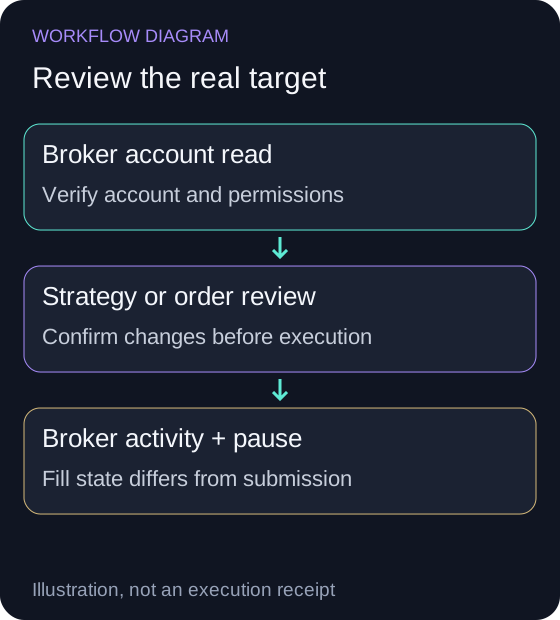
Review the tested candidate
Inspect the saved rules, historical test and separate paper observation. Verify target account and applicable trading permissions.
The intended strategy and broker account are identified; simulation history is not a broker fill.
Review Port to Live
From the paper Deployment Center select Port to Live, choose Tradier and read the added/disabled strategy changes before Confirm & Port.
Confirmation can activate the live target; inspect its returned ID and state.
Verify and pause the correct executor
Inspect the live portfolio's orders and policy. Switch Automated Trading off and Save Changes to pause evaluation.
Pausing an executor does not automatically sell holdings or cancel outstanding broker orders.
Inspect the full illustrated deployment sequence
Follow one reviewed strategy into Tradier
Show the table · 5 rows, 2 columns
| Step | Artifact to inspect |
|---|---|
| Paper Deployment Center → Port to Live | Saved source portfolio, strategy names and exact rules. |
| Select Tradier and review changes | Incoming rules and any existing active rules that confirmation will disable. |
| Confirm & Port or Disable existing & Port | Only confirm when the target account and proposed changes are correct; this can activate the live target. |
| Open live portfolio | Returned target portfolio, imported account, timing settings and order policy. |
| Pause and read back | Automated Trading off and Save Changes pause evaluation; inspect open orders and holdings separately. |
No matching rows. Clear the filter to see all records.
Start from your existing paper candidate and inspect its saved rules before opening Tradier authorization. This table names the actual product transitions to verify. It is a walkthrough contract, not a claimed connection or order from this guide.
Choose a worked Aurora example
Show choose a worked aurora example
Move a paper strategy into a Tradier account
Show move a paper strategy into a tradier account
Use NexusTrade's native Tradier connection when you want the platform to evaluate saved strategy rules against your broker portfolio. Choose a worked example below to create and test the rules in Aurora, observe paper trades and review the Tradier account before porting.
Start with a saved, tested candidate
Show start with a saved, tested candidate
Write explicit entry, sizing and exit rules, then save the strategy. Fix the historical test period, capital and benchmark before running it. Review warnings and individual orders as well as the return curve.
Use a separately identified NexusTrade paper deployment to observe simulated operation before brokerage deployment. Retain the original saved candidate ID, backtest ID and deployed paper ID. A backtest curve is not paper history, and paper results are not live fills.
Keep Tradier sandbox and NexusTrade paper separate
Show keep tradier sandbox and nexustrade paper separate
Tradier documents distinct production and sandbox API tokens. Its sandbox is a broker test environment; a NexusTrade paper deployment is a separate platform simulation. Do not substitute one ID, credential or result series for the other.
The native NexusTrade account connection uses its broker authorization flow. If you build a separate Tradier API client, use Tradier's own token and environment documentation rather than entering a sandbox token into a production connection.
Connect your Tradier account in NexusTrade
Show connect your tradier account in nexustrade
Open Tradier account connection and select Connect Tradier. Choose Connect my existing account, review and accept the disclosure, then select Connect Tradier to complete the broker authorization in its sign-in flow. NexusTrade checks the stored connection and returns account requirements; complete any requirements shown before proceeding. Do not paste broker credentials into an agent conversation.
Account connection identifies a broker account; it does not prove that the candidate strategy is deployed or that an order has filled.
Review Port to Live before confirming
Show review port to live before confirming
Open the paper portfolio's Deployment Center and select Port to Live. Choose Tradier and inspect the confirmation. The port copies strategies into the live brokerage portfolio and preserves the paper source. Existing active live strategies can be disabled by the port; review the displayed conflict list.
Confirm & Port can activate the live target. Treat it as a real deployment action, not a preview. The server validates strategy eligibility and returns livePortfolioId, disabledCount and addedCount. Unsupported short strategies are rejected; options also require the account's applicable access.
If authorization or porting fails
Show if authorization or porting fails
If the account screen asks to refresh authorization, select Continue to Tradier and complete the broker sign-in again. Return to NexusTrade and check that the connection is ready before reopening Port to Live.
If the port returns you to the broker picker, the server did not find a connected brokerage. Reconnect the account and review the target again. For another error, read the displayed message and inspect the live target before retrying. A missing confirmation is not proof that the copy failed; check its strategies and active state to avoid repeating a deployment blindly.
Check automated trading and order approvals
Show check automated trading and order approvals
Read the live portfolio's trading policy and follow the account application or portfolio-settings action it provides. Automated trading and its daily limit can only be changed by you in the NexusTrade UI. Aurora and MCP do not enable this policy, and account approval alone does not switch it on.
For manual review, inspect proposed orders before approving them. NexusTrade's create_orders tool stages live orders unapproved and does not submit them to the broker. Paper orders use a separate simulation path; a submitted or accepted order is not proof of a fill.
Verify the live target and know how to pause
Show verify the live target and know how to pause
Inspect the request
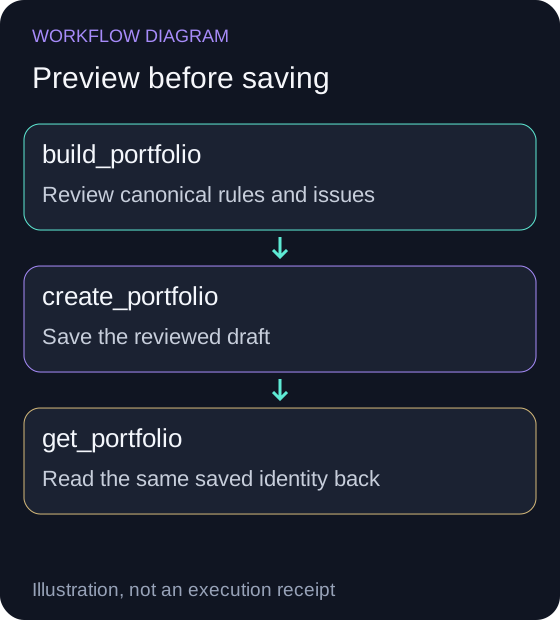
Open the returned livePortfolioId and check its Tradier identity, strategies, active state and trading policy. Review orders and portfolio events against broker account activity. Use the exact live ID for get_portfolio, get_portfolio_policy, list_orders and query_portfolio_events when inspecting through MCP.
To pause NexusTrade strategy evaluation, switch Automated Trading off in the Deployment Center and select Save Changes. Verify the active state on that same live portfolio. Review outstanding broker orders and holdings separately; pausing strategy evaluation does not mean an existing position has been sold or every open order canceled.
No comments yet.